Linking your Pick6 Account to Discord enhances your DraftKings experience with access to exclusive rewards, contest-specific channels, real-time updates, and a direct line to engage with DraftKings. The process is quick, and once you're connected, you’ll be able to engage directly with the DK community and stay closer to the action.
Before You Start
Make sure:
- You’re logged into your DraftKings Pick6 account.
- You have a valid Discord account.
How to Link Your Discord Account via App
1. Log in to your Pick6 account.
2. Navigate to your Profile icon in the top right corner.

3. Tap Discord.

4. While on the Linked Accounts page, tap Link next to Discord. A pop-up will appear confirming the linking.


5. Log in to Discord (if prompted) and Authorize the DraftKings connection.


6. You’ll see a confirmation message that your accounts are successfully linked.

How to Link Your Discord Account via Desktop
1. Log in to your Pick6 account.
2. Navigate to your Profile icon in the top right corner.

3. Tap either Discord in the drop-down menu, or navigate to Account Information.

4. Select Linked Accounts.

5. While on the Linked Accounts page, tap Link next to Discord. A pop-up will appear confirming the linking.

6. Log in to Discord (if prompted) and Authorize the DraftKings connection.

7. You’ll see a confirmation message that your accounts are successfully linked.
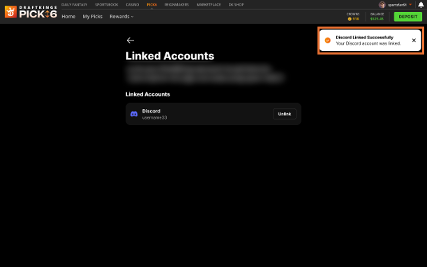
Additional Notes:
- You can confirm your link by checking your Pick6 Account Settings under Linked Accounts.
- If you link your Discord account to Pick6, it will also be recognized as linked in Fantasy Sports—and vice versa. There’s no need to link separately in each product.
- Your DraftKings username will be displayed as your Discord nickname on the server.
- You will gain access to Discord channels, contest updates, and community chat.
How to Unlink Your Discord Account via App
1. Log in to your Pick6 account.
2. Navigate to your Profile icon in the top right corner.
3. Tap Discord.
4. While on the Linked Accounts page, tap Unlink next to Discord.
- A pop-up will appear asking you to confirm the Unlinking by clicking Yes, Unlink.


5. You’ll see a confirmation message that your accounts are successfully Unlinked.

How to Unlink Your Discord Account via Desktop
1. Log in to your Pick6 account.
2. Navigate to your Profile icon in the top right corner.
3. Tap either Discord in the drop-down menu, or navigate to Account Information.
4. Select Linked Accounts.

5. While on the Linked Accounts page, tap Unlink next to Discord.
- A pop-up will appear asking you to confirm the Unlinking by clicking Yes, Unlink.


6. You’ll see a confirmation message that your accounts are successfully Unlinked.

After Unlinking
- After unlinking, you may relink a new Discord account or leave it disconnected. Review the linking steps above for additional assistance.
Troubleshooting
- If the linking fails, ensure you’re logged into the correct Discord account.
- Make sure you're using the latest version of the DraftKings Pick6 app to avoid compatibility issues.
- Try clearing your cache and cookies or using an incognito browser.
- You can’t link from Discord to DraftKings — it is a one-way connection initiated from your Pick6 or Fantasy Sports accounts.
- Still stuck? Contact DraftKings Customer Support for help.
Learn More
Connecting to the official DraftKings Discord server unlocks a new level of gameplay and interaction: Join the DraftKings Discord Server!
- Join exclusive contests, AMAs, and real-time conversations.
- Stay up to date on all things DraftKings.
Welcome to the conversation — we’ll see you in Discord!